
Every two weeks, Maastricht University publications are automatically imported from Web of Science, Pubmed and Scopus and connected to your profile.
These will be validated by the faculty key user after which they will become visible on the Research Information portal.
Your research outputs overview in Pure
Log in to Pure using your UM account.
(Having trouble logging in? Check out our tips on the FAQ page.)
Click on ‘Research outputs’ to open your overview.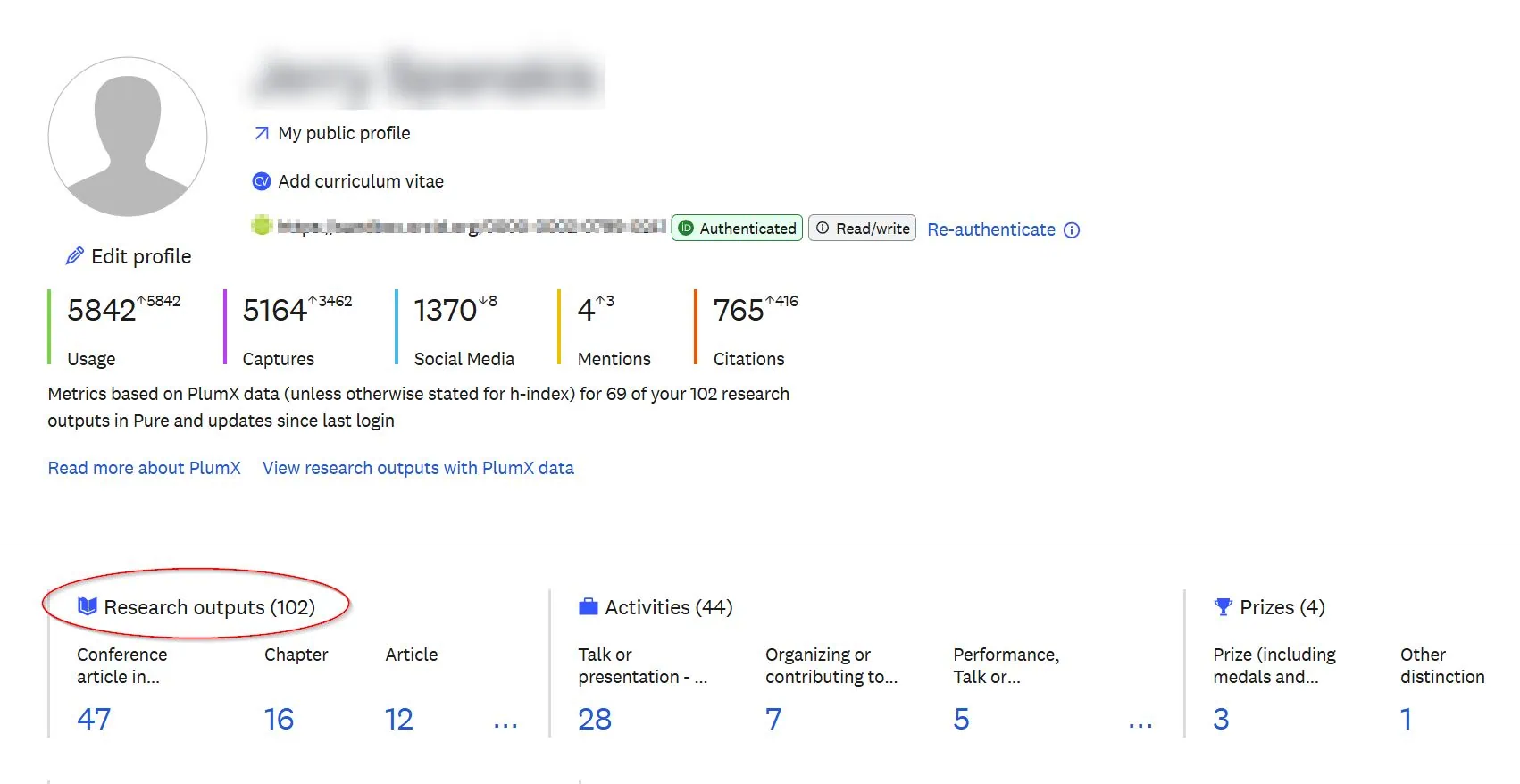
Not your publication?
Open the publication and use the button ‘Disclaim this content’ at the bottom of the record.
Missing your publication?
Before adding new content, it is advised to check if the publication is already available in Pure. Missing publications may still be registered in Pure, with you as an external author. Use the search field at the top of the page to search for the publication.
If the publication is already in Pure, you can use the ‘Claim this content’ button at the bottom of the record.
If the publication is not in Pure, you can add this.
How to add a new research output in Pure
There are 3 ways to add publications to Pure yourself:
From an online source
Manually
Choose template and type
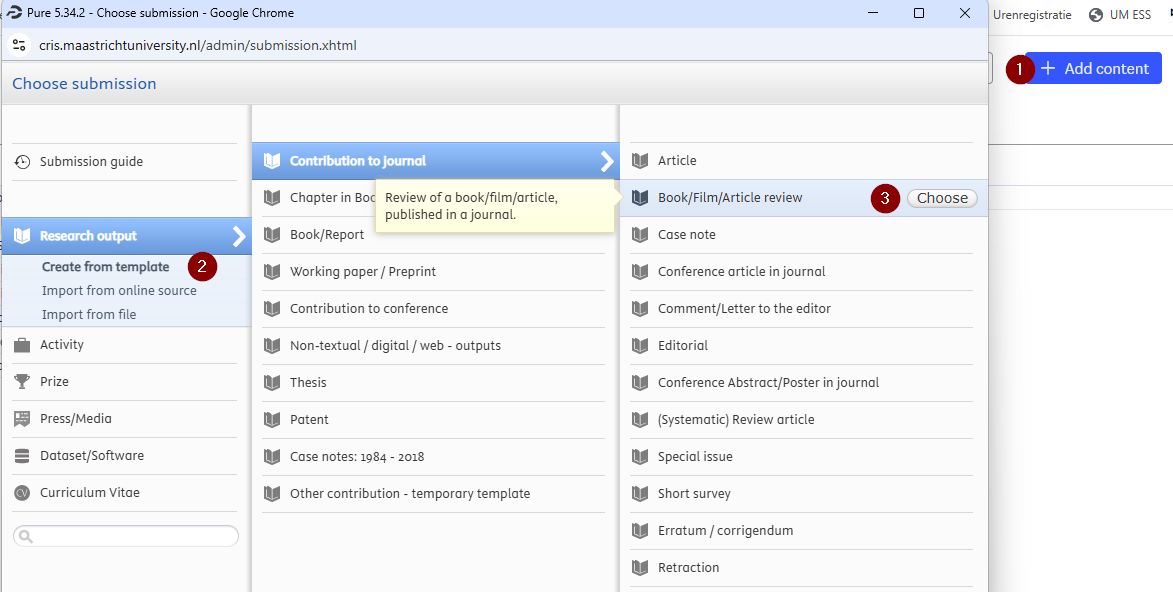
- Click the Add content button in the top right corner of the screen.
- Choose Create from template under Research output.
- Select the appropriate publication type – use the mouse-overs for guidance.

Enter the publication metadata
(fields marked with a red asterisk* are mandatory)
Click Save
Manually added research output will be validated by the faculty key user after which they will become visible on the Research Information portal.
From file (RIS or BibTex)
Consult your faculty key user if you would like to import research output from a file.
Also want your non-UM output visible on your profile?
When you add research output from previous appointments to Pure, make sure to replace your internal UM-affiliation with the appropriate external affiliation.
- Click Edit button next to your name.
- Check off your internal affiliations and choose Affiliate to an external organisation.
- Search and select the organisation that your were affiliated to at the time.
There may be multiple entries for an organisation – preferably select one with a Country label to improve your network in Pure.
Use Create external organisation if you cannot find the correct entry in the list.
Add your non-UM research output step by step
For non-traditional outputs, such as datasets, activities and press/media coverages and contributions, see the dedicated pages.